
Company news

09.02.2024
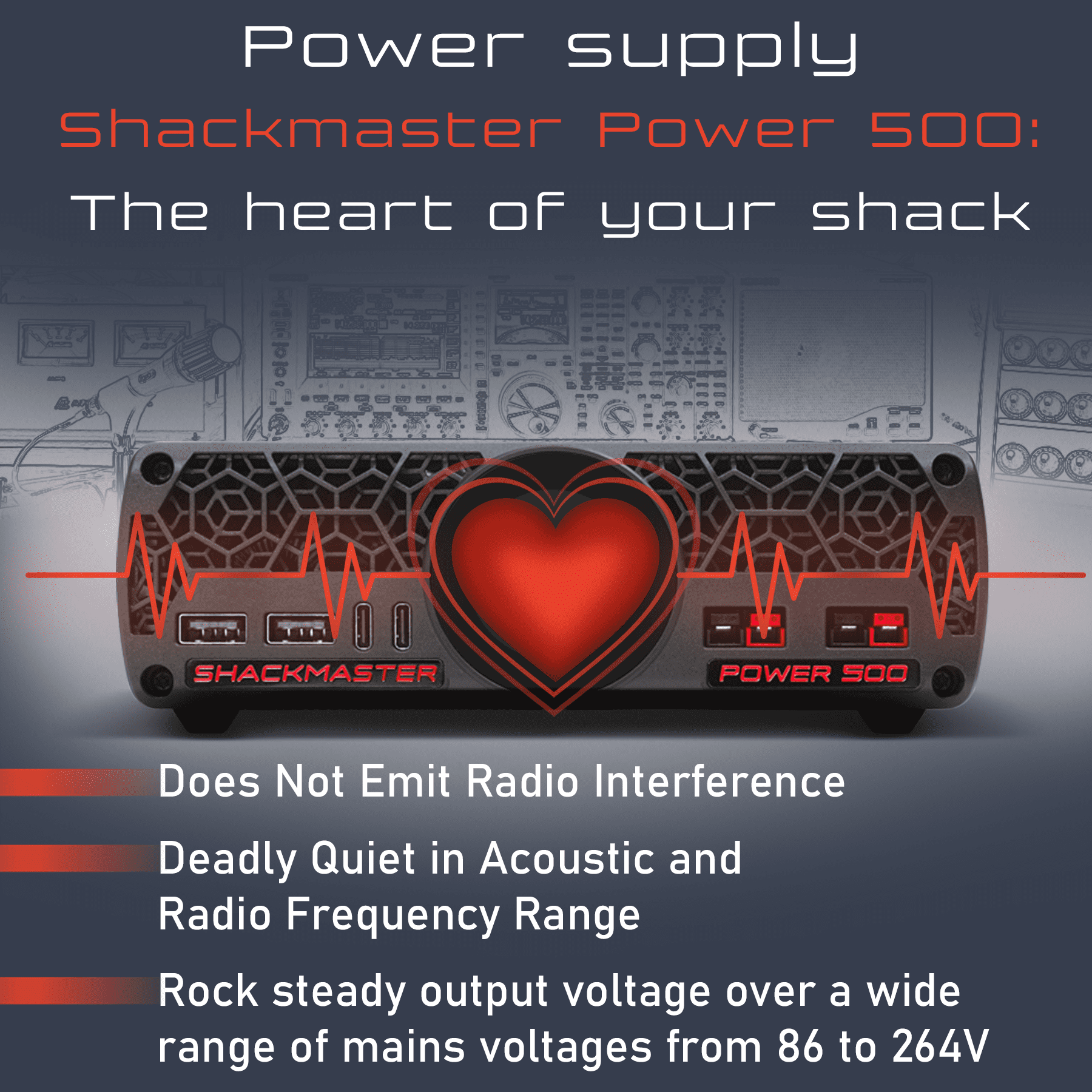
Shackmaster Power 500: With Passion for Radio
You love your Shack and know that it needs a powerful and reliable power source.
That’s why we created the Shackmaster Power 500 power supply, the heart of your shack.


01.02.2024
Tokenblauser GPSDO: aсhieve perfect frequency coherence in every connection
What unites participants of DXpeditions and UHF/Microwaves Contests? Both aim for maximum QSOs, a common goal for all contesters. The common challenge they face is poor long-distance communication and when the sound source is in motion.
What to do? Stabilize.
23.01.2024
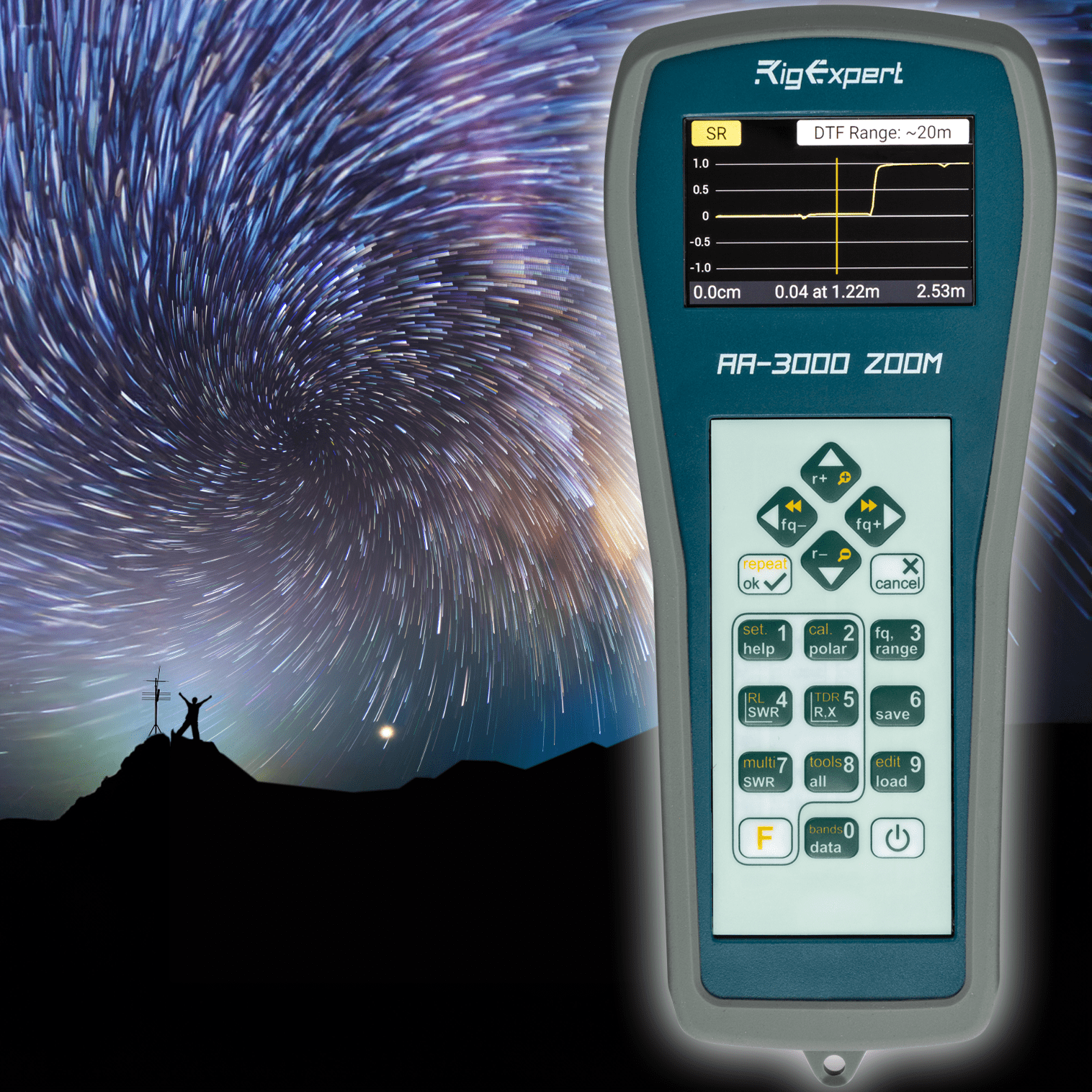
AA-3000 ZOOM: a true star of radio communication!
Under any challenging conditions, the AA-3000 ZOOM antenna analyzer works. Proven by the military.
More
05.01.2024
The MRB-M4 Changes the Rules of Radio Communication
We have started mass production of the MRB-M4 Mobile Radio Battery, and it's a communication-changer!
More
12.12.2023
Christmas Drop II - Special Savings for Radio Amateurs!
This holiday season, we are dedicated to uplifting the amateur radio community and embracing the power of Giving.
More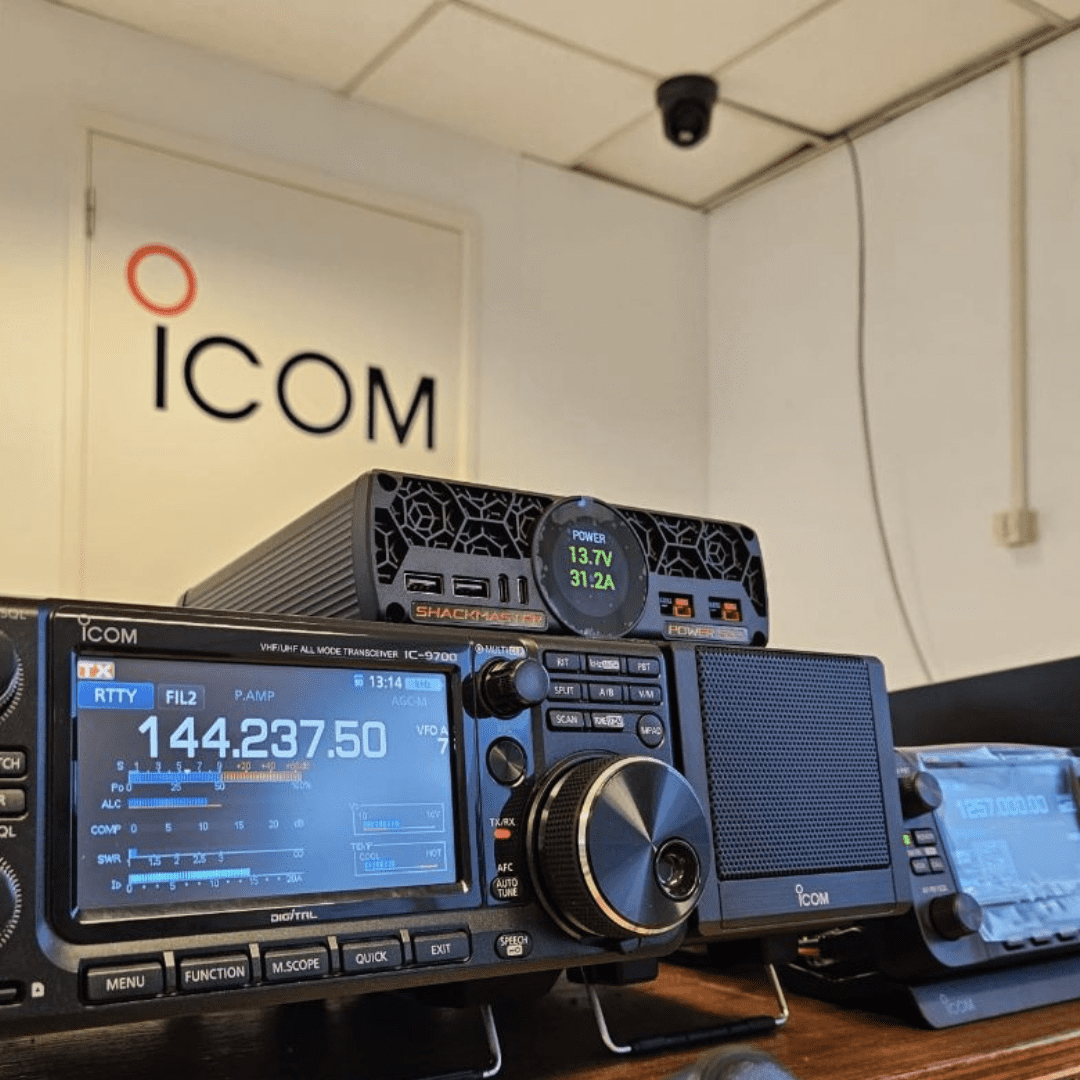
11.12.2023
Shackmaster Power 500. Full load challenge
What happened to the Shackmaster Power 500 Compact Desktop 36A|13.8V Power Supply after several days of full load?
More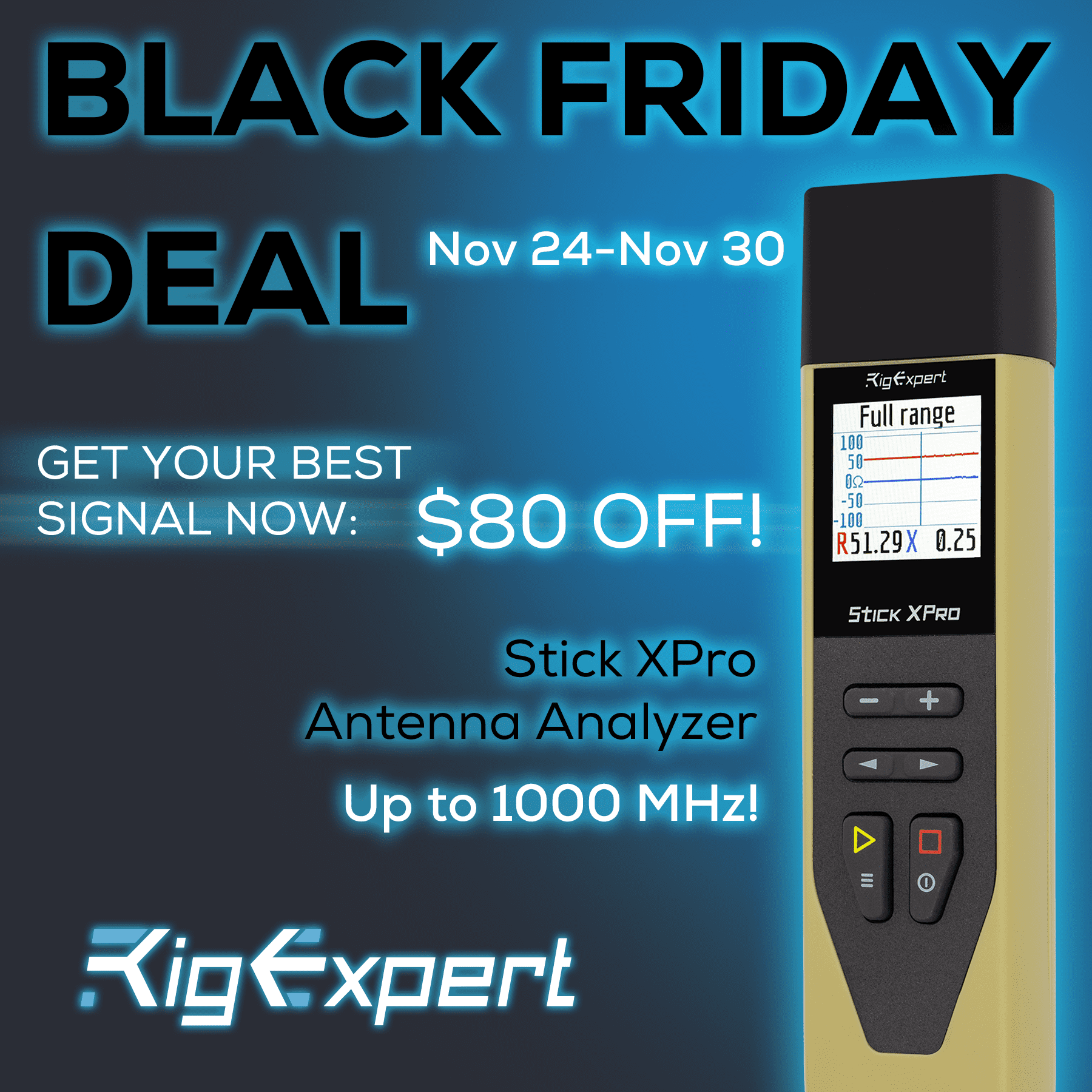
22.11.2023
Stick XPro: the top-of-the-line analyzer for $80 off!
Have you dreamed of an antenna analyzer with a beastly performance to match the harshest fieldwork?
More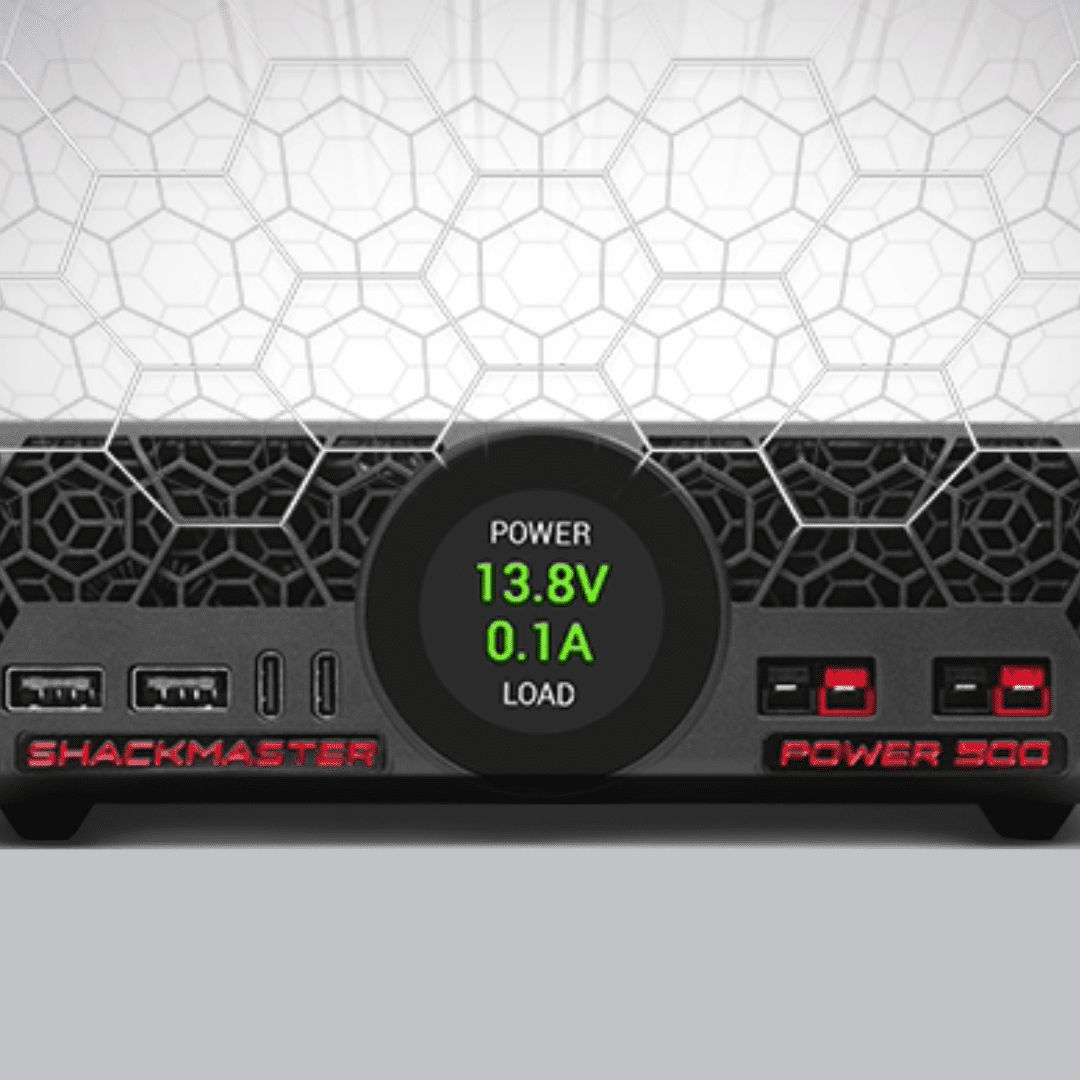
28.08.2023
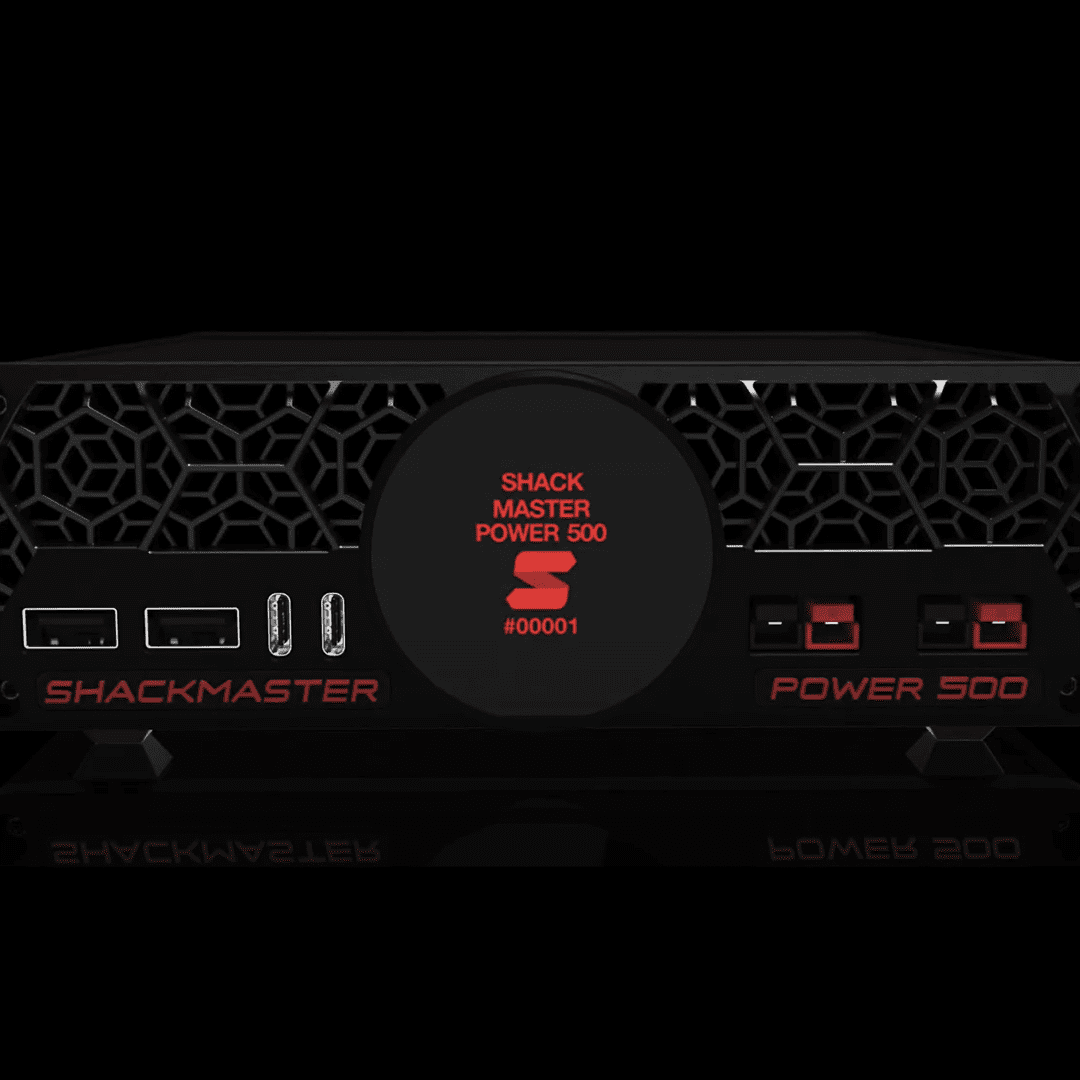
Shackmaster Power 500 redefines high quality
The Compact Desktop 36A|13.8V Power Supply Power 500, is now available for pre-order.

18.08.2023
Introducing the new premium brand from RigExpert!
Look for the new Shackmaster brand at the GigaParts Huntsville booth, Huntsville Hamfest 2023.
Only two days, August 19 and 20, 700 Monroe St SW, Huntsville, AL 35801. The meeting place is the GigaParts booth.
Shackmaster - powered by RigExpert.

02.06.2023
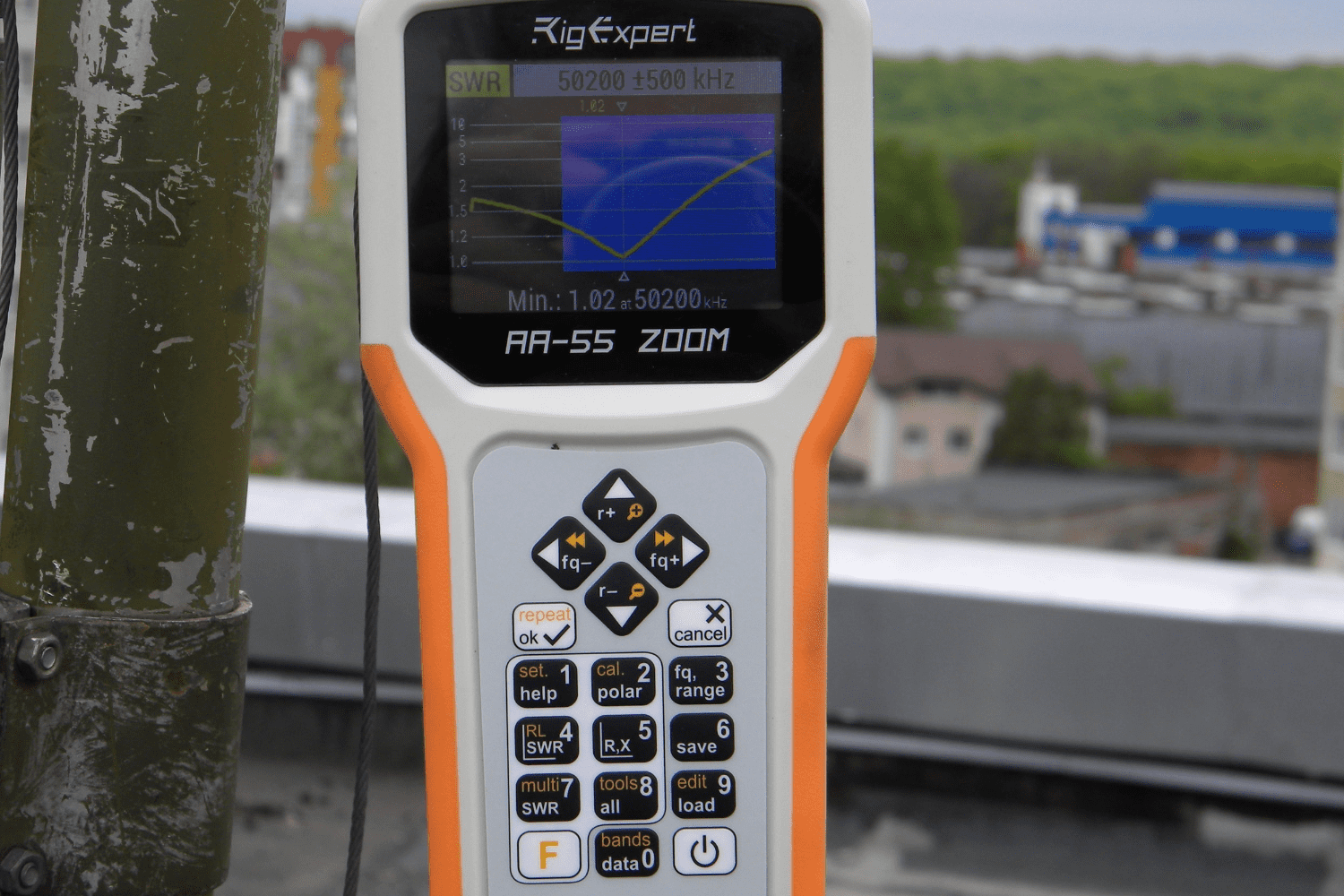
How to make and tune the 50 MHz Yagi Antenna
Creating the 6-element antenna and evaluating it using the RigExpert AA-55 ZOOM Antenna and cable analyzer
More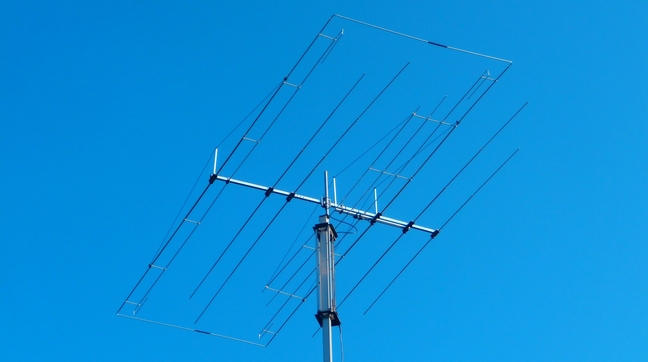

30.05.2023
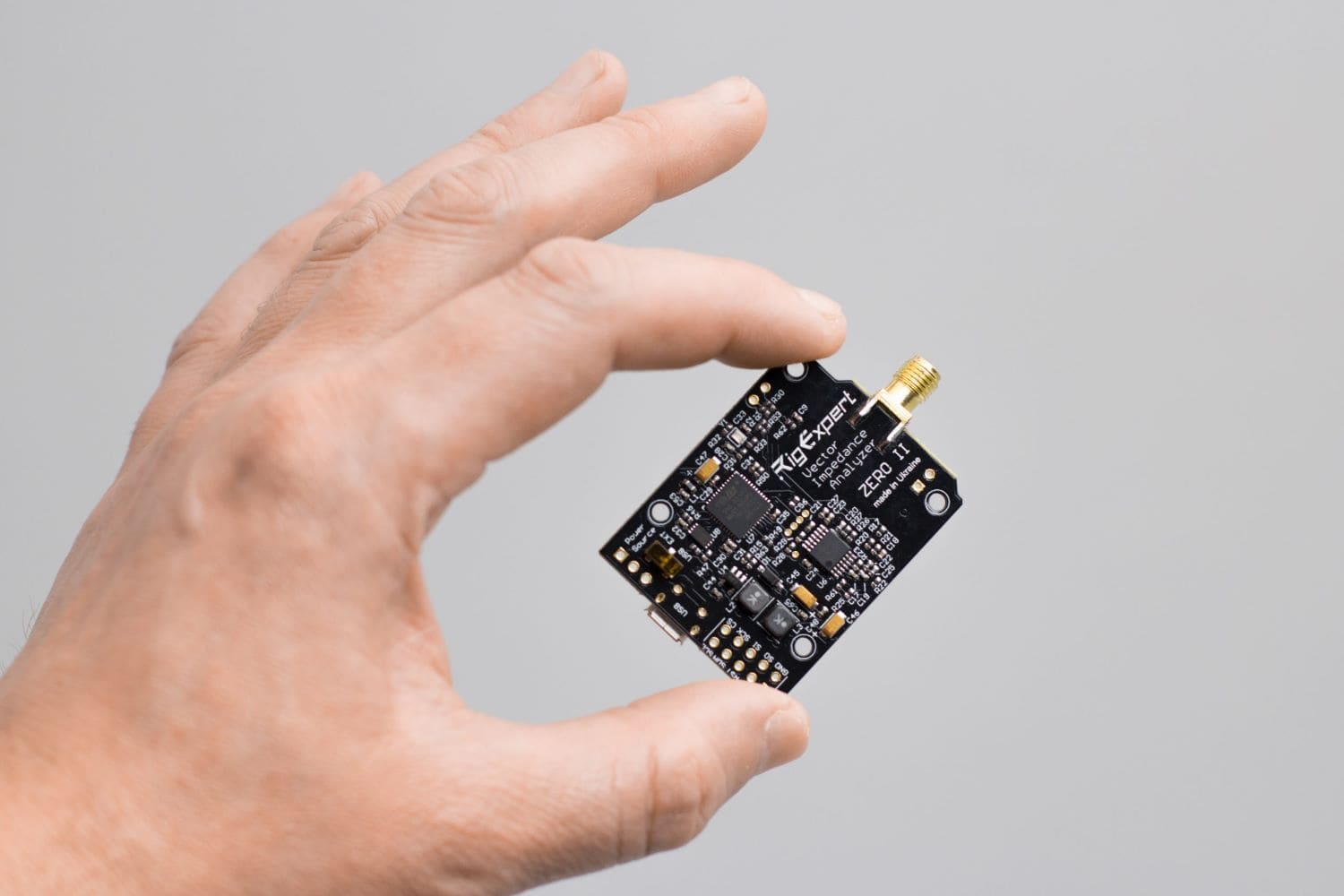
ZERO II: the tiny and powerful analyzer
We created a second version of the beloved tiny AA-30.ZERO analyzer that users enjoy two years ago. The new project's name, ZERO II, embodies its core values of versatility and simplicity.
More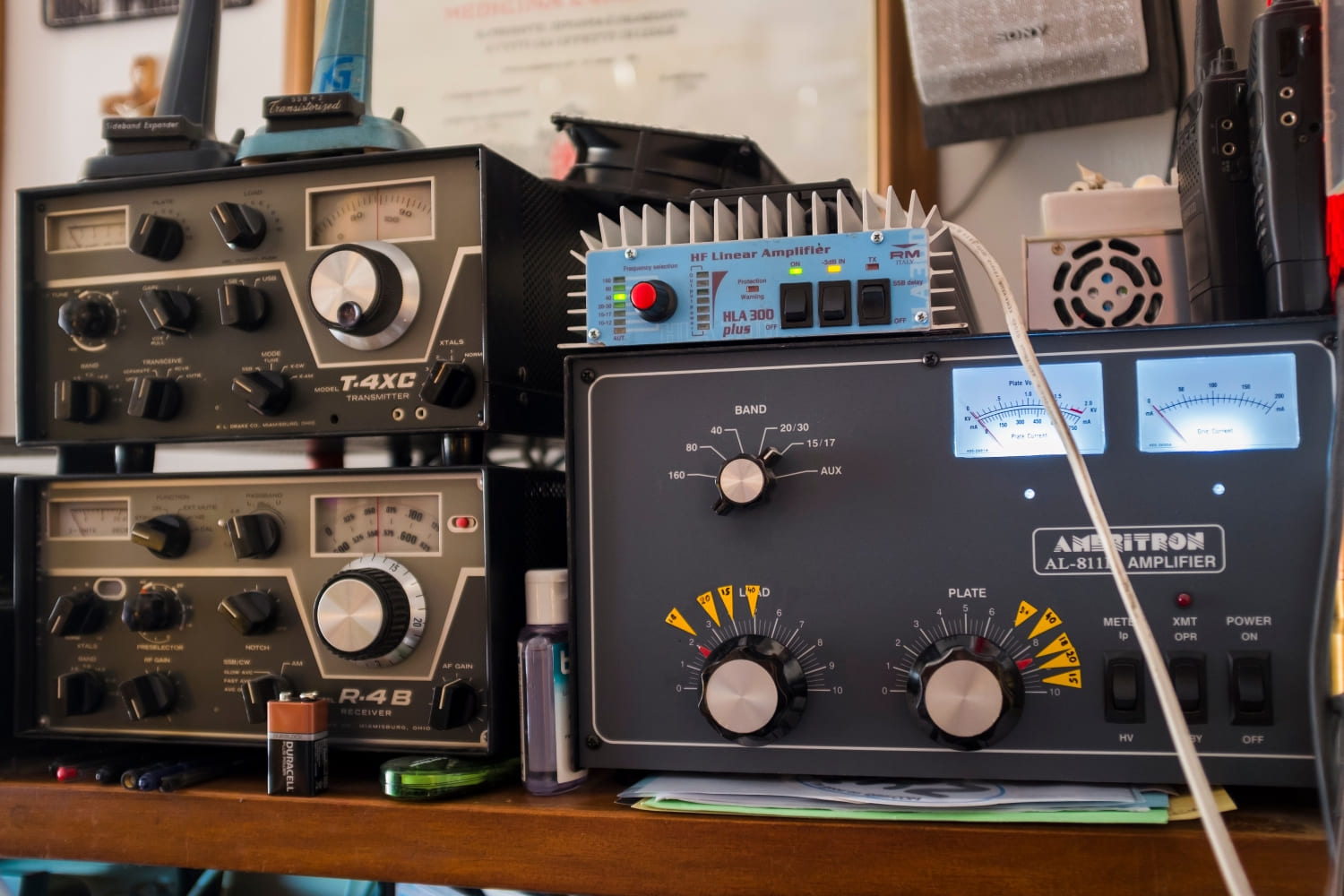
26.04.2023
Bands used by radio amateurs.
PART 1. HF (shortwave) Bands
When talking about the radio spectrum used by radio amateurs, one has to remember that in the early days of radio, hams were able to use it all.
More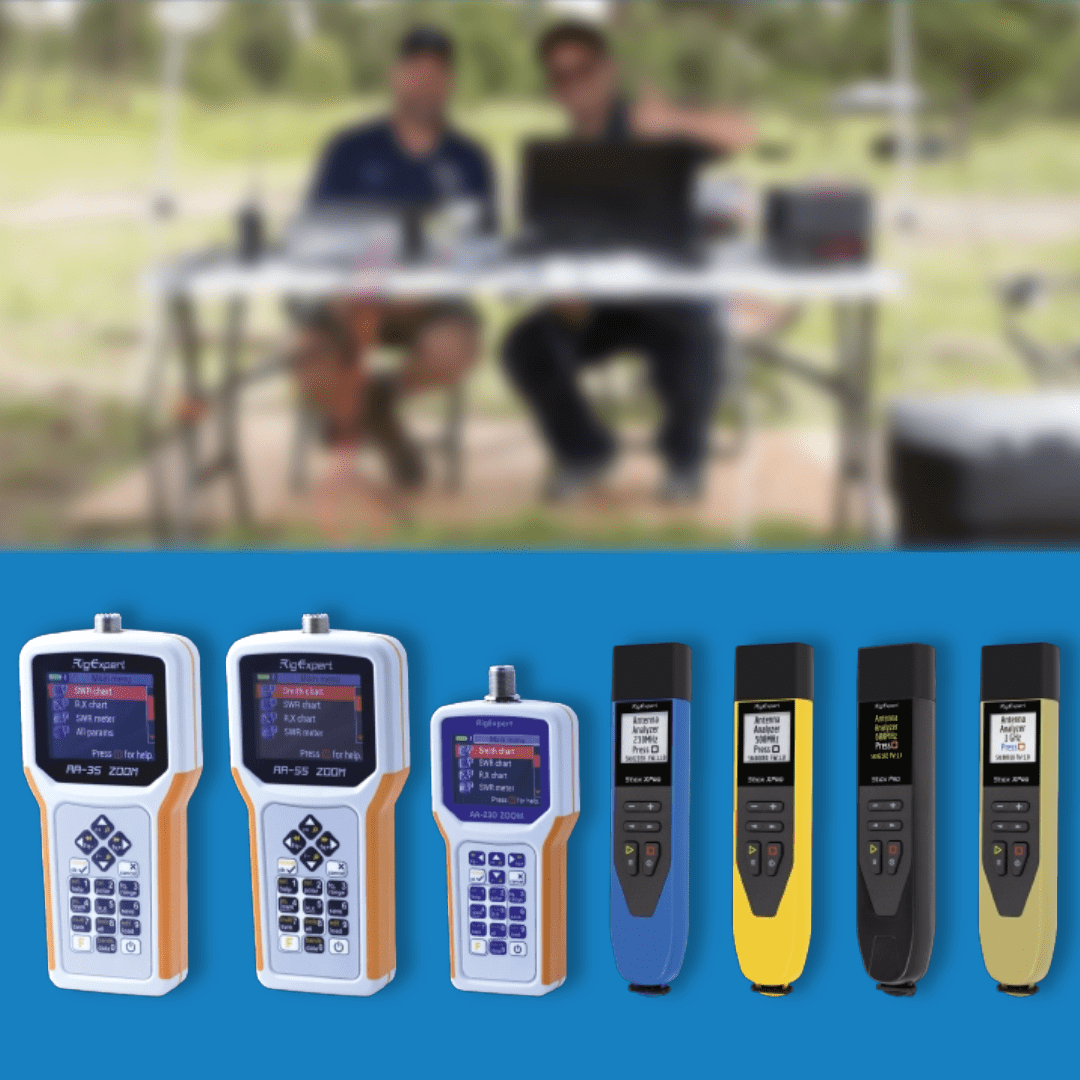
23.03.2023
Buy an Antenna and Cable Analyzer RigExpert with a $35 discount!
Looking for a RigExpert Antenna and Cable Analyzer? Your goal is closer than ever!
Buy a RigExpert Antenna and Cable analyzer with a $35 discount!

22.01.2023
Why are radio amateurs called hams?
A cut of meat consisting of a thigh, an actor performing in an exaggerated theatrical style, and finally, an operator of an amateur radio station – there are several suggestions why we are called hams.
More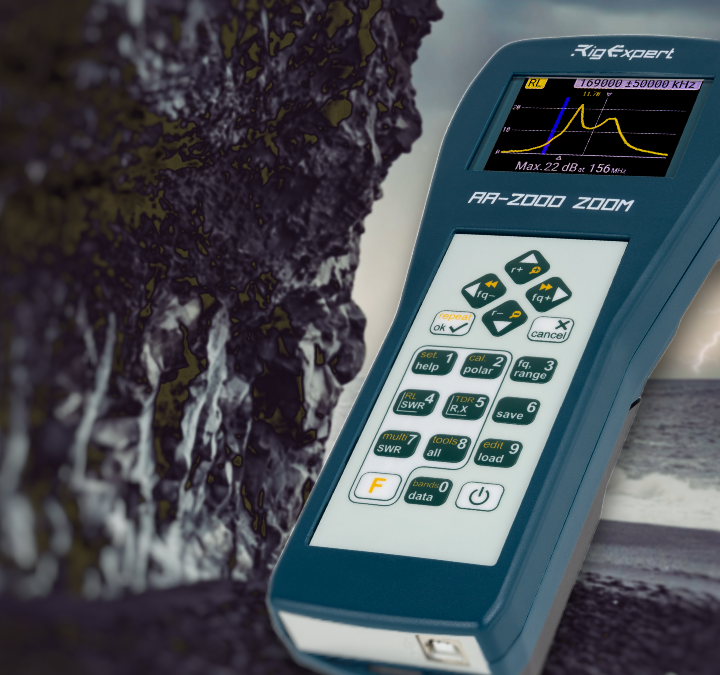
19.01.2023
AA-2000 ZOOM: the high-end class analyzer
The top RigExpert analyzer AA-2000 ZOOM operates in all amateur radio and professional bands.
RigExpert VNA measures the parameters of antennas, cables, and antenna-feeder paths.
As a helpful addition, the analyzer also measures RF elements like capacitors and inductors, transformers, and traps. It is a powerful helper for feeder lines.

16.01.2023
3Y0J DXpedition on Bouvet Island continues
“They did not know it was possible, so they did it” – this citation by Mark Twain completes the text about the 3Y0J project on the website www.3y0j.no.
And we`re sure that we know how it became real.

15.01.2023
We`ve got your back
Really, why the RigExpert? We are not the only manufacturers in the telecommunication market. What uniqueness can we propose to our users? And would we can?
More
12.01.2023
Why does a radioamateur need Antenna and Cable Analyzer?
“I have been a radioamateur since 1990 and have never used an analyzer. No one needs it… ” – once flew on Facebook.
More
09.01.2023
Tassie Ham Radio Conference and Expo
The Conference participants showed great interest and highly appreciated the undeniable advantages of RigExpert products
More
30.12.2022
Happy New Year!
Well, the last days of the year are coming to an end.
It was a challenging year…

22.12.2022
We continue to work. For you
Our cities often get darkness. But the light is within us.
More
09.12.2022
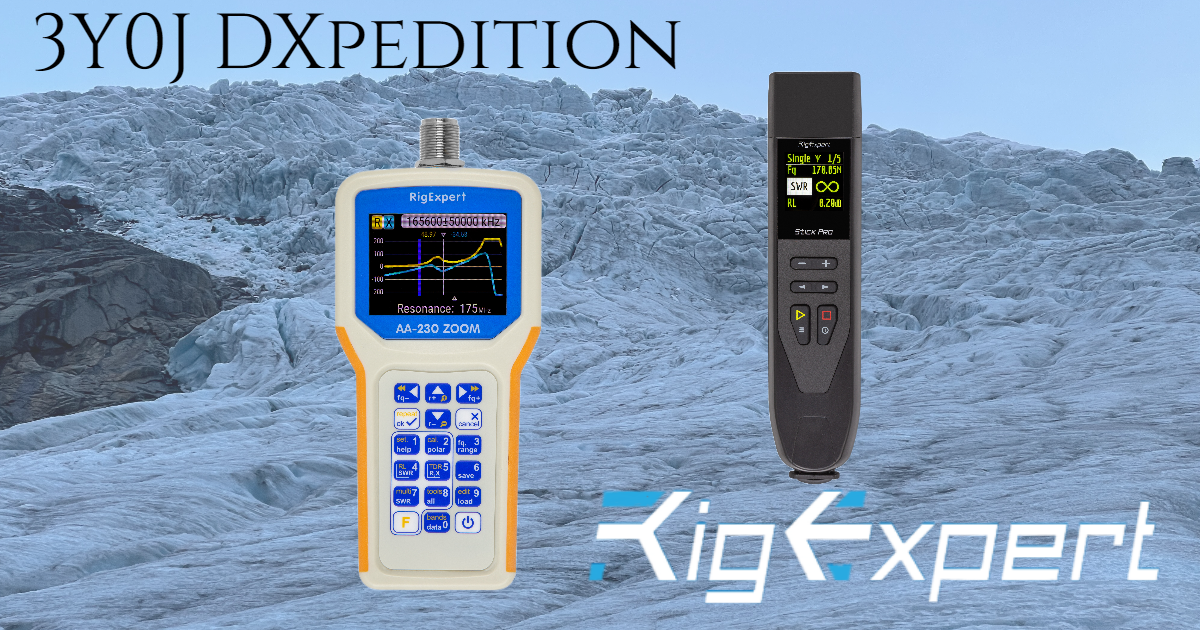
3Y0J DXpedition on Bouvet island
To be a part of the 3Y0J story, it’s an honor. The RigExpert company was awarded as a sponsor.
More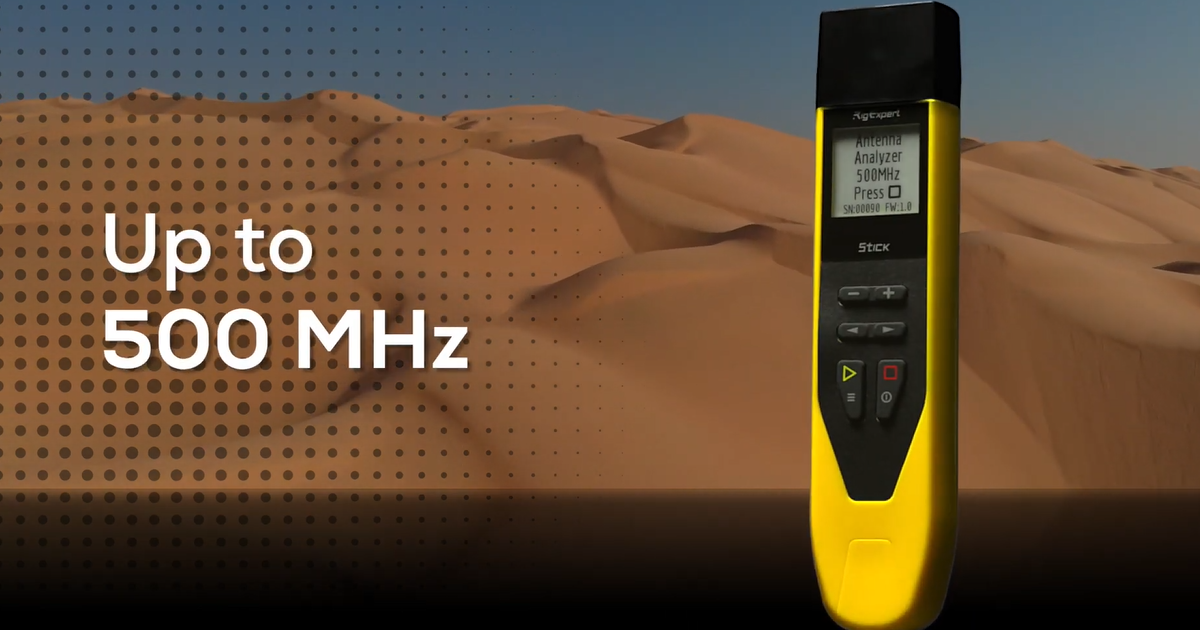

18.11.2022
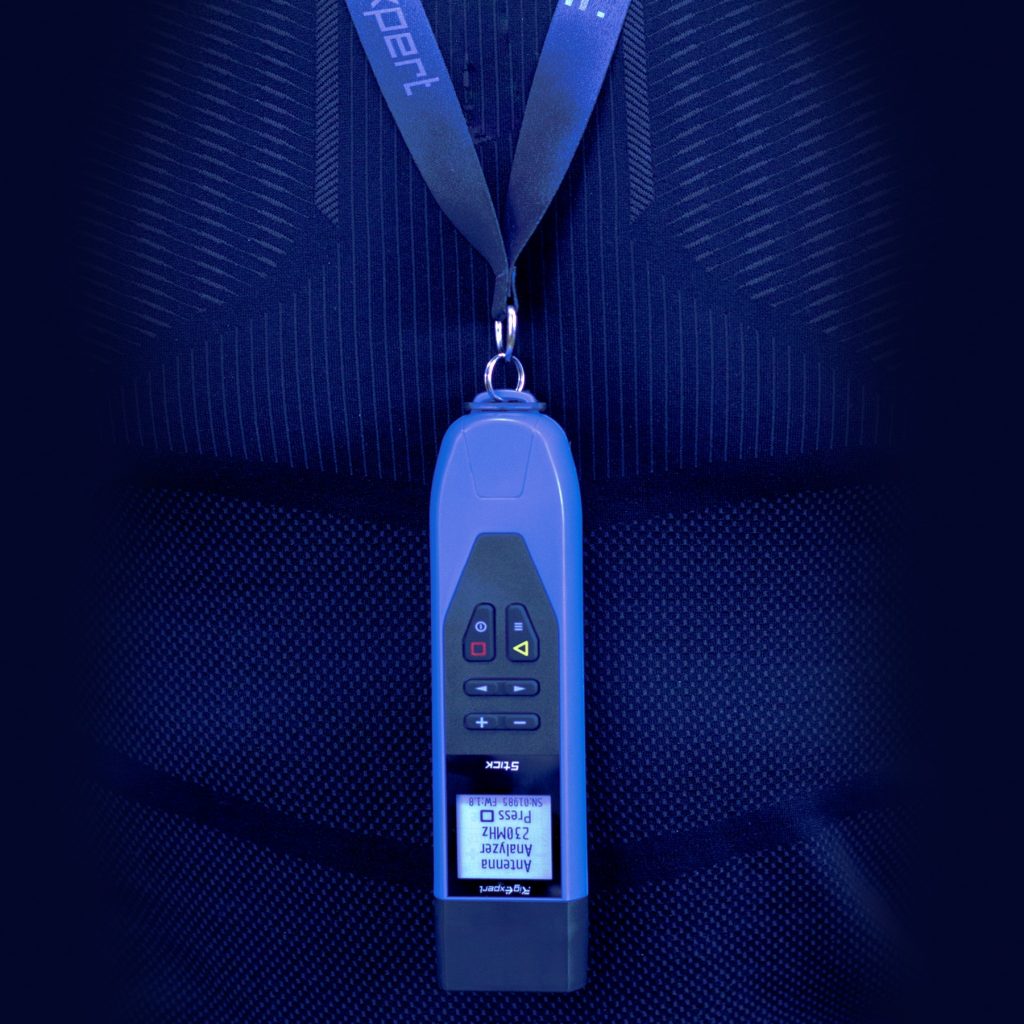
US Army liked Stick 230
When the representatives of the most technological army in the world are satisfied with our analyzer
More
14.11.2022
Antenna and cable analyzers for $30 off on Black Friday sales
Make a profit for yourself and your antenna
More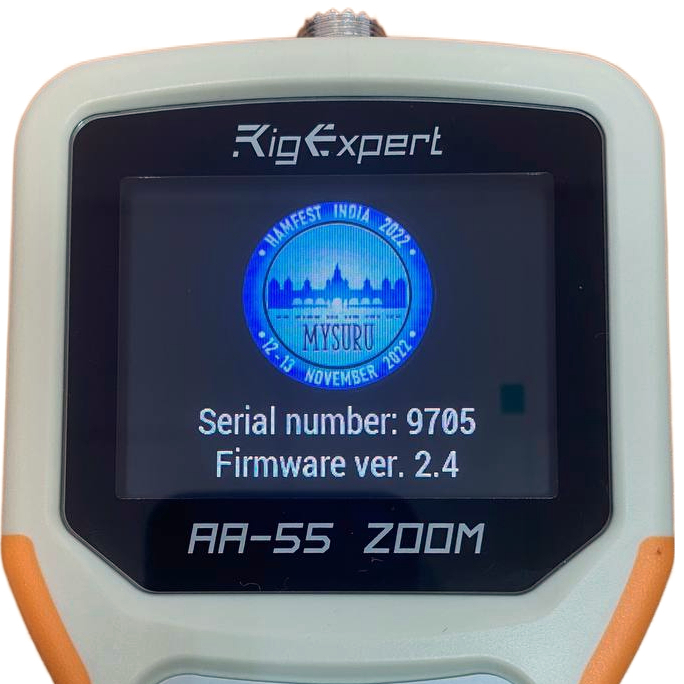
05.11.2022
RigExpert is the Sponsor of Hamfest India 2022
Hurry to win one of AA-55 ZOOM in the lottery from RigExpert!
More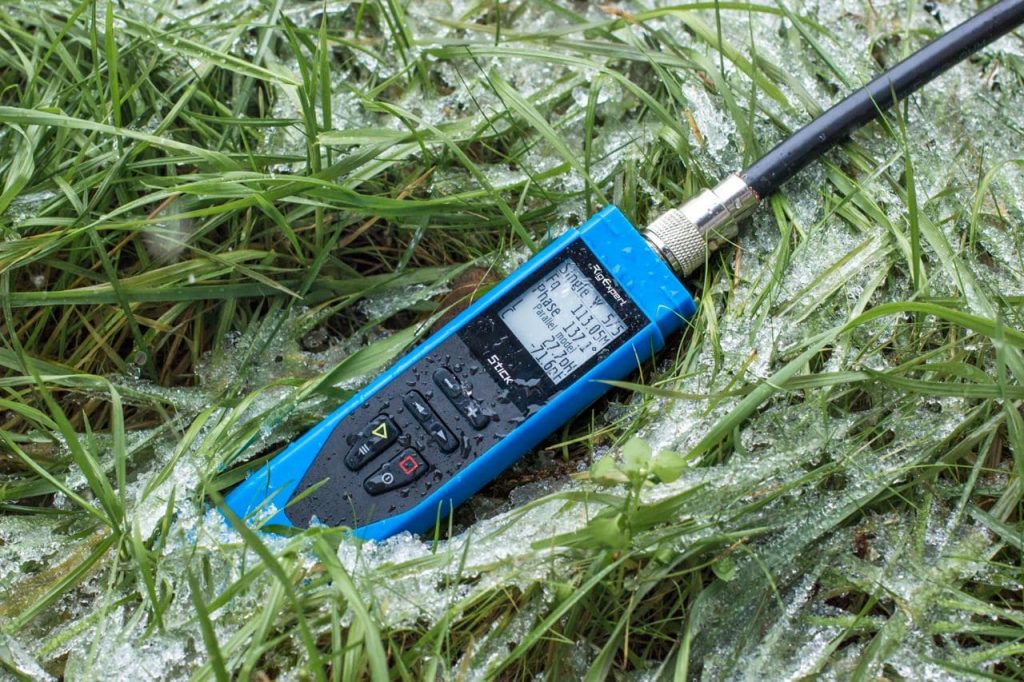
03.11.2022
Stick 230: compact, lightweight, powerful, and multitasking
Compact, lightweight, powerful, and multitasking - the Stick 230
More
20.02.2020
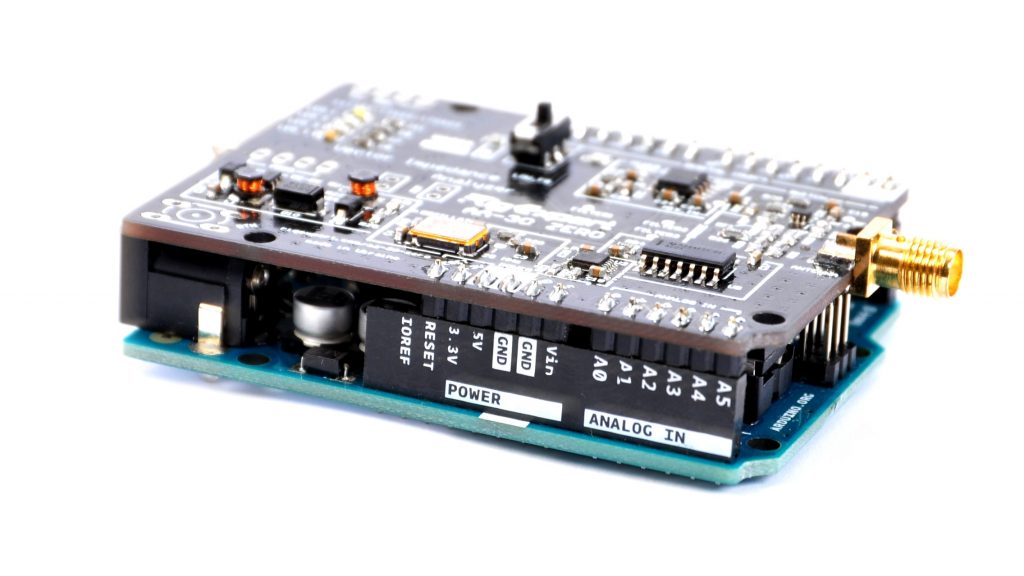
RigExpertZero library for Arduino
We are in a hurry to announce great news for the current and future owners of the AA-30 ZERO analyzer.
Our engineers have developed a special library with program code for Arduino, which will allow enthusiasts to simplify the development of their program code for together work between Arduino and the AA-30.ZERO analyzer.
17.02.2020
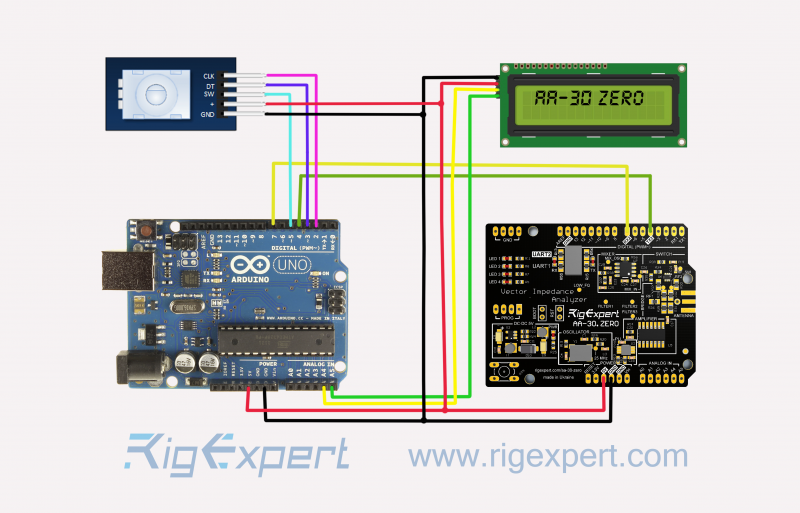
Arduino + AA-30.ZERO = tiny analyzer
AA-30.ZERO is an excellent tiny antenna analyzer that works in conjunction with PCs and AntScope and AntScope2 software and allows you to measure antennas and feeder lines in the range from 100 kHz to 170 MHz!
More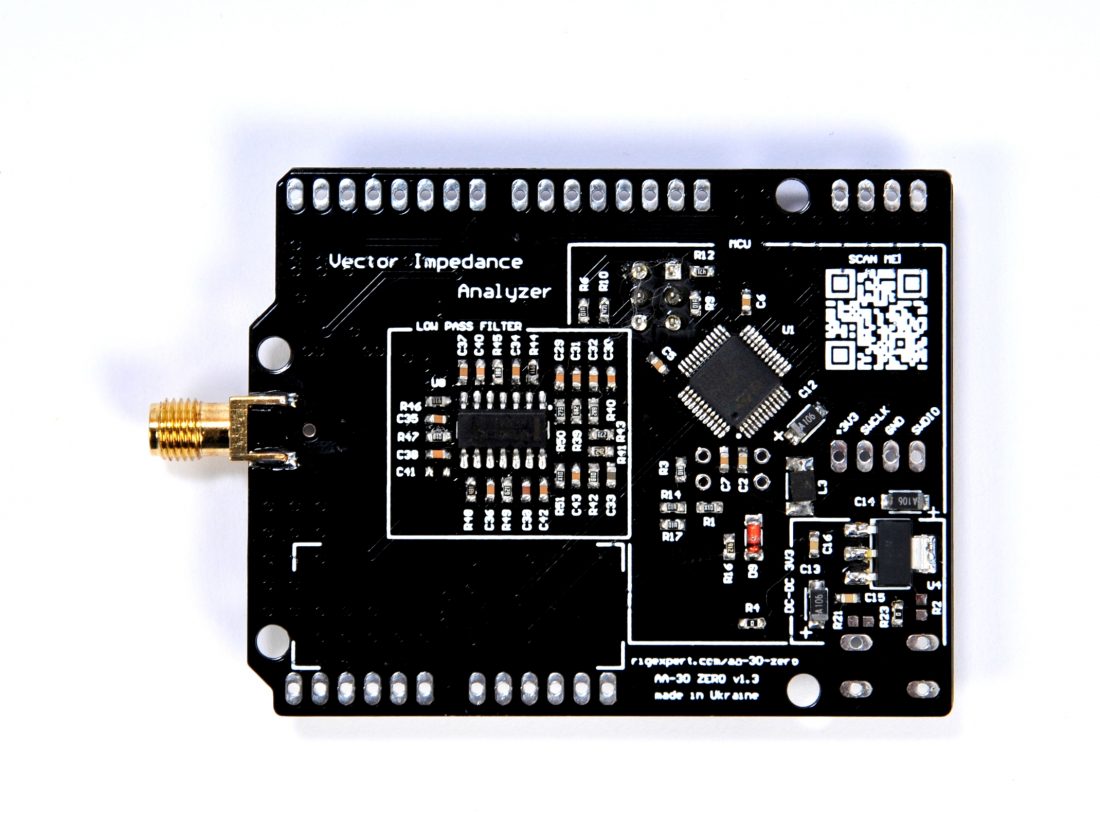
05.02.2020
New firmware for AA-30 ZERO
We have released a new firmware update for the AA-30 ZERO analyzer (version 2.0)
In this version, we added the ability to measure at a single frequency.
04.12.2019
AntScope2 for Rasberry Pi (Raspbian)
About two months ago, we received many questions such as “Is it possible to run AntScope2
on the Raspberry Pi platform to work with the AA-30 Zero analyzer?”

01.02.2019
Feedback on the work of the RigExpert MixW team!
Our MixW team does everything for you to enjoy using the program!
More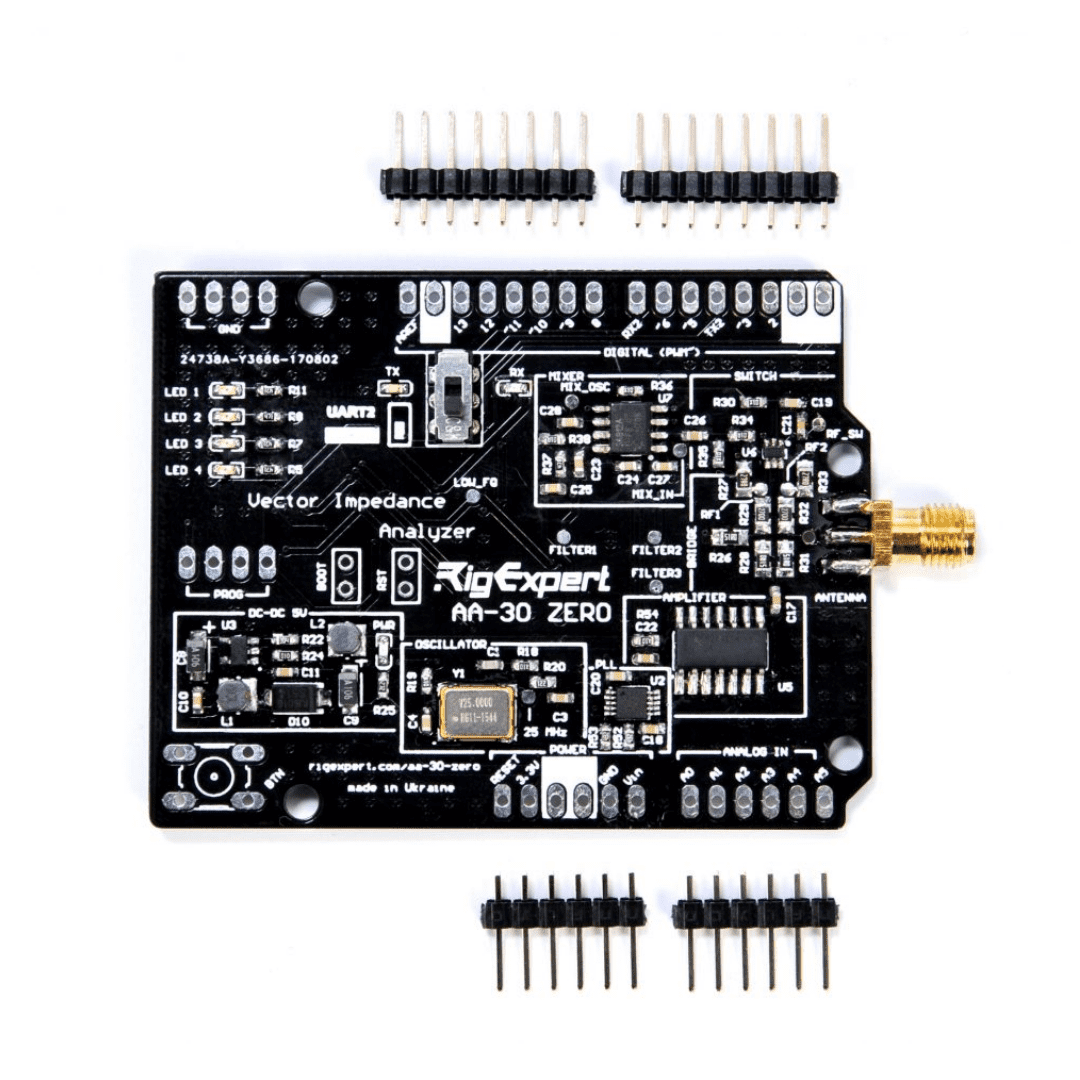
31.07.2017
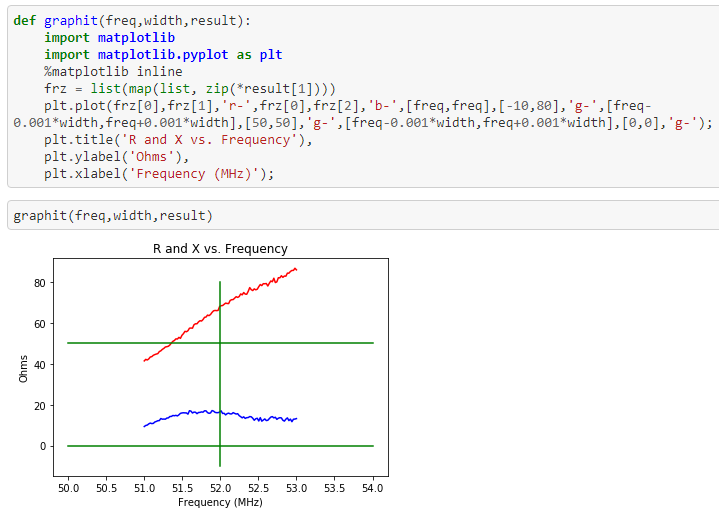
How to automate measurements using Python
Our friend Bill Maier (KG5RMJ) who spent 35 years as a software engineer offered his version of interaction with the AA-54 device.
More
Our Advantages
Quality and durability are in the DNA of RigExpert products.
Reliability and durability
We control each stage of performance from the creation of the project to the receipt of the end product at the dealer's warehouse.
Each device goes through four stages of testing before sending to the user:
- electronic post-production
- after assembly
- before shipping to the warehouse
- before sending it to the dealer
We are so confident in the quality of our products that we just replace the device with a new one - unique to the industry 2-year RigExpertCare™ warranty program.
Perfect Customer Support 24/7
We measure our success by the positive feedback we receive. Prompt and professional, empathetic and patient, with a positive attitude - this is how users describe our Customer Support.
- Available 24/7/365 to support you
- Directly from the developer/manufacturer - we know everything about our devices
- We take care of your problem and give back your spare time
- Attentive and friendly service. Proven by user reviews
Customer Support works to make you enjoy your free time.
Simplicity and Functionality
All analyzers measure.
RigExpert analyzers solve specific user tasks.
- An intuitive user interface
- Ready to work “from the box” because factory calibrated
- A built-in helper for each instrument at the push of a button
- Various measurement modes are adapted to each specific case of using the device
Every RegExpert product creates with genuine passion of radioamateurs and and extensive experience top R&D experts.
Ready for adventure
Sometimes it is necessary to tune RF systems outdoors in different environments. RegExpert VNA is ready for challenges
- Dust- and humidity-protected enclosure
- High contrast big display
- Operation temperature from -20° to 55°C
Count on the RigExpert VNA when should working in the field
Devices
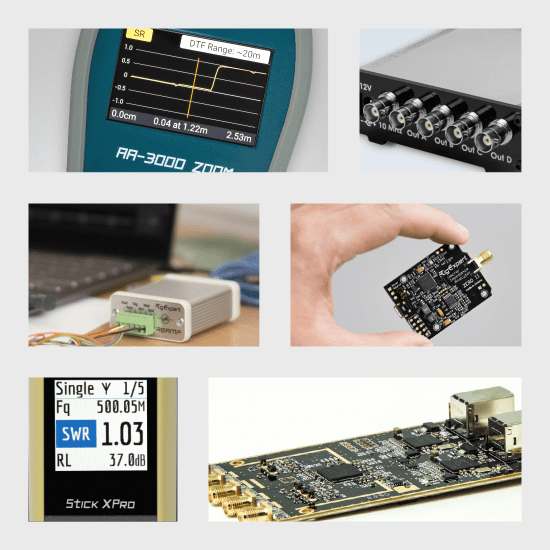
RigExpert develops and supports a wide range of devices for professional and amateur radio, M2M and IoT industries, DIY enthusiasts.
Choose your RegExpert product.
Software
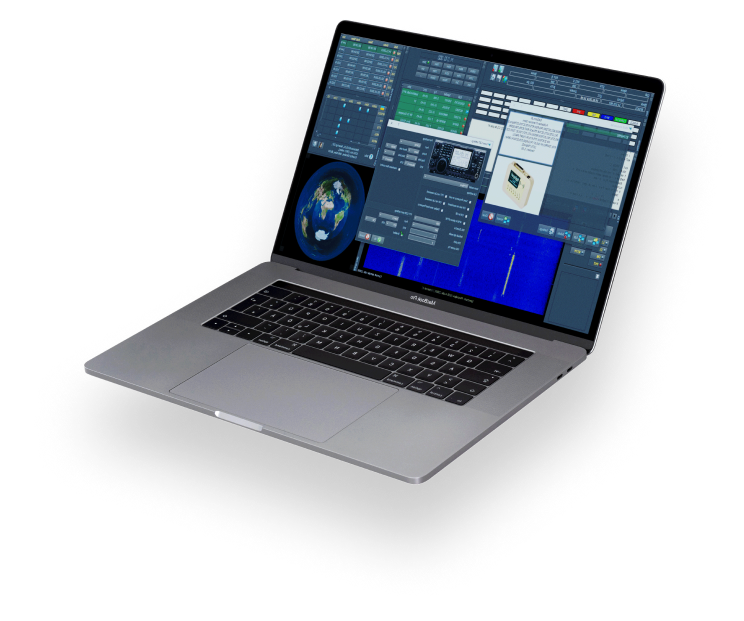
Multi-OS Companion Software for all of our products
- MixW: 3-in-1 utility software (Logger, Digital, Contests) for hams to use in both daily QOs and contests
- AntScope: antenna tuning and RF analysis software
- Reamp: software for comprehensive analysis of the power profile of LPD and IoT devices
Subscribe to be the first to know!
State-of-the-art products, software updates, fresh training videos, and articles - all to make using your RigExpert easy and enjoyable. We will be happy to share new achievements with you.

